Smile Design Via Mobile - Beta
*Note: make sure your phone is not on batery save mode.
Start by taking a portrait photo or by selecting one that has already been uploaded to your case documentation.
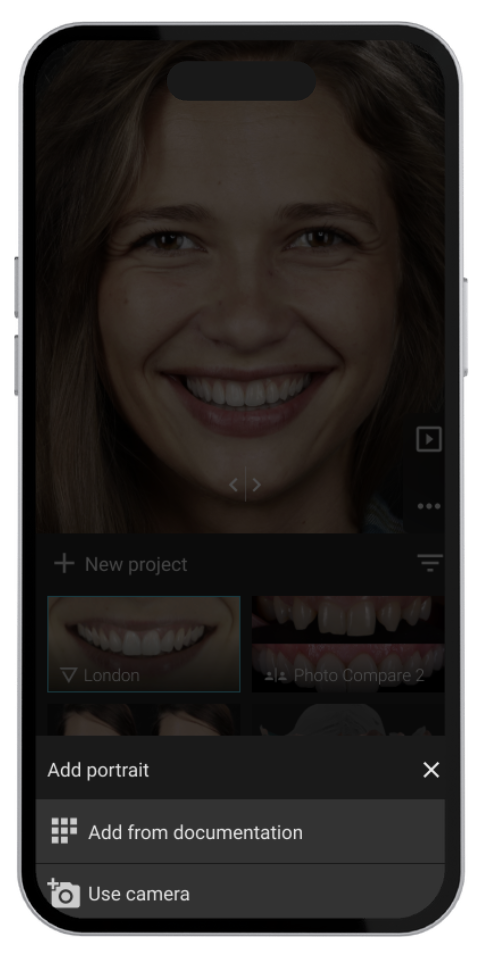
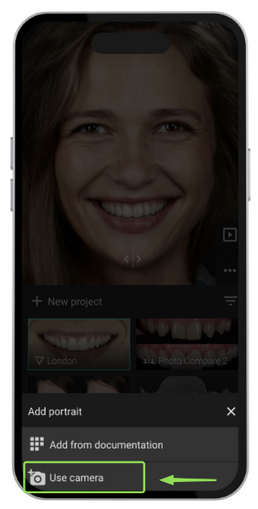
Tapping the “Use Camera” option will instantly open your camera viewfinder, allowing you to capture the portrait directly within the app.
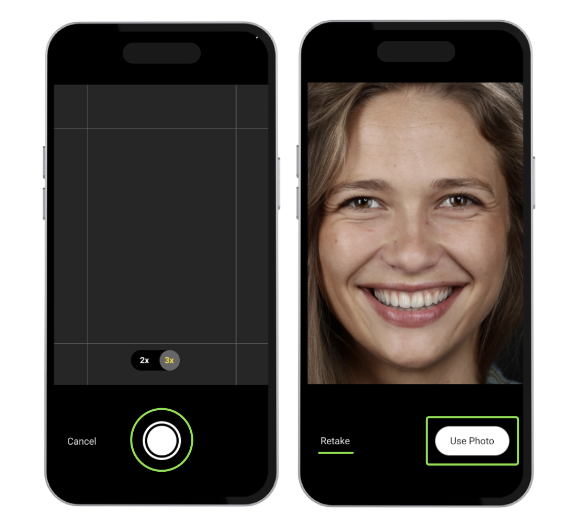
Once you’re happy with the framing, tap the capture button and then select “Use Photo” on the next screen. If you’d like to try again, simply tap “Retake” and capture a new portrait until everything looks just right.
When selecting the “Add from Documentation” option, the app will automatically display all portraits available in your case documentation. Simply tap the image you’d like to use for your Smile Design.
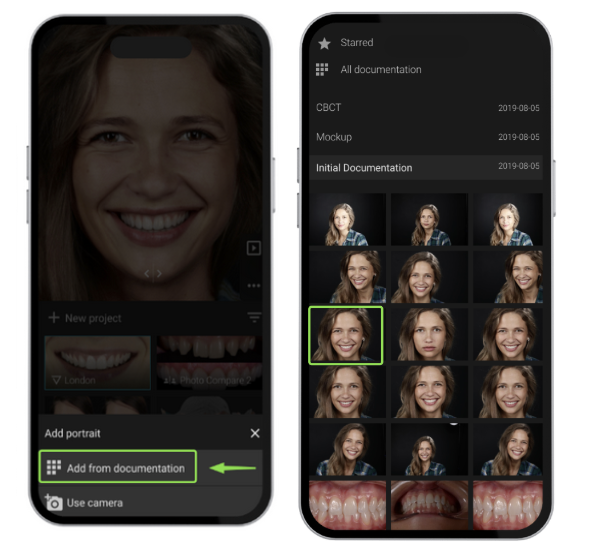
From here, whether you captured a new photo or selected one from your documentation, rotate your phone to landscape mode and allow a few moments for the app to intelligently enhance and optimize the portrait.
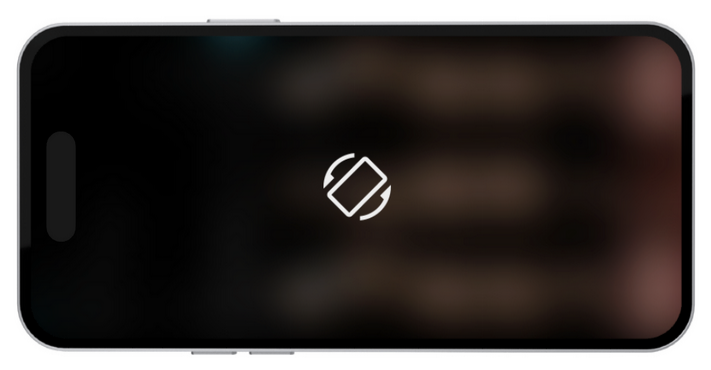
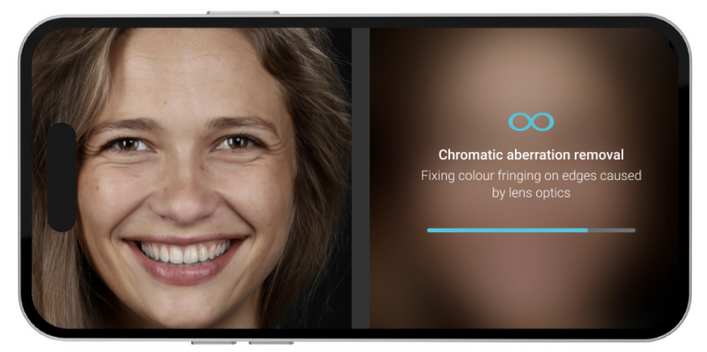
As soon as the enhancement is complete, tap “Next.” And enjoy your enhanced result. You can also choose to use the original picture if you prefer.
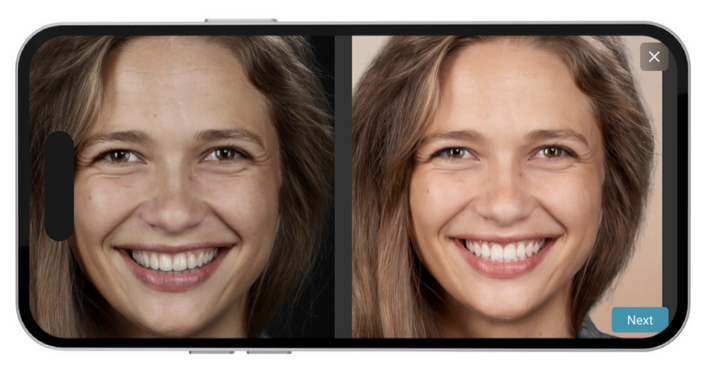
Tapping “Next” on this screen will take you to the Lip Contour adjustment stage.
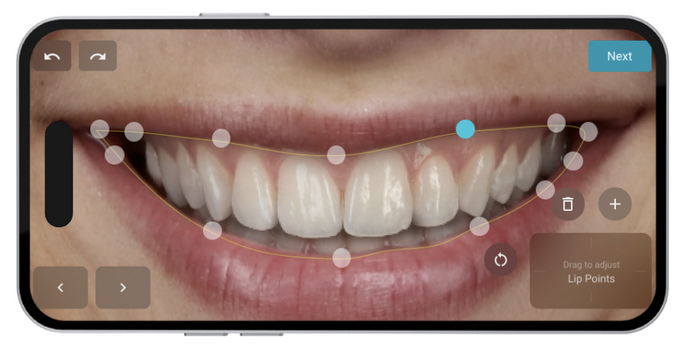
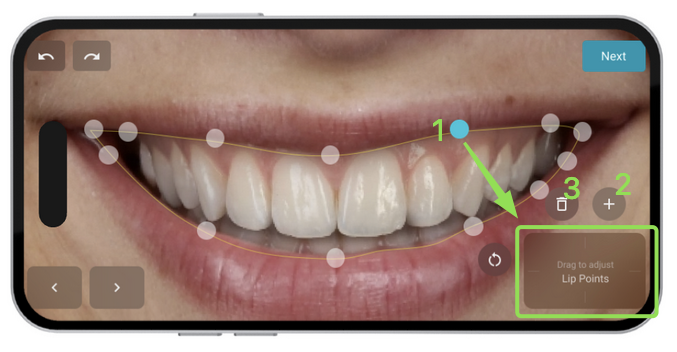
On this screen, you’ll be able to:
- Adjust lip points by selecting them and using the drag pad on the left to fine-tune their position
- Add new lip points
- Remove existing lip points
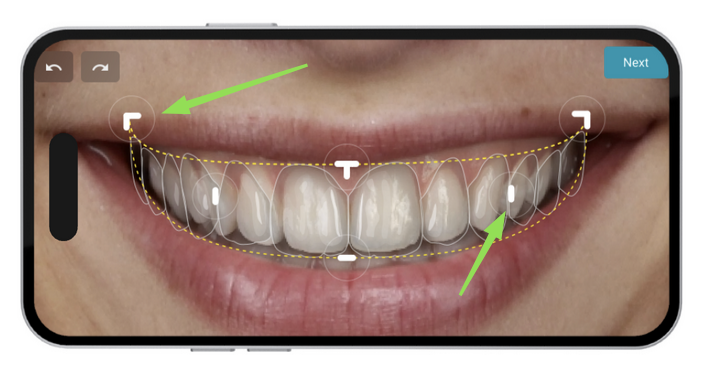
When you’ve finished refining the Restorative Space, simply tap “Next” and allow the app a few moments to process your Smile Design in HD.
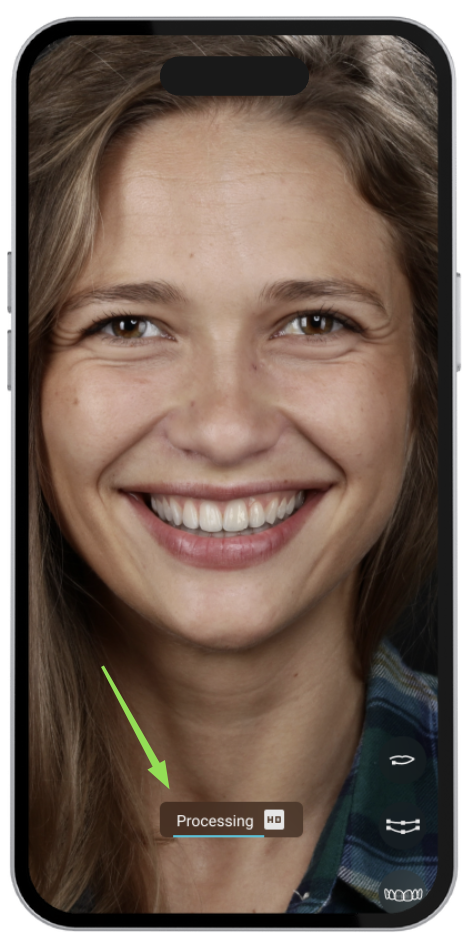
- Adjusting tooth shade
- Controlling the opacity between the enhanced smile and the original photo
- Returning to the Lip Contour or Restorative Space at any time for further refinements
- Showing or hiding the Smile Design outline
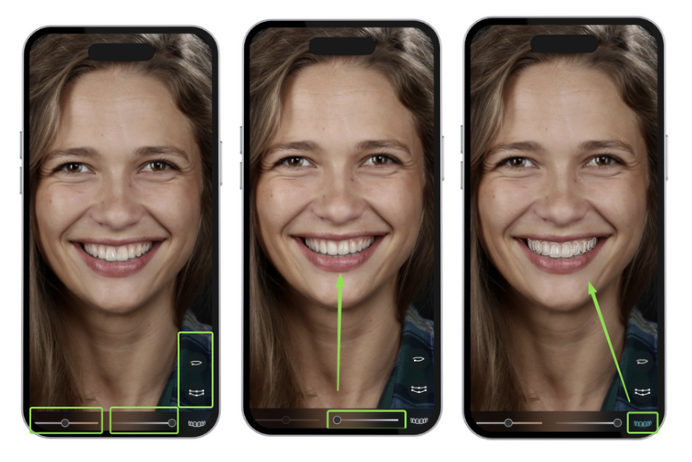
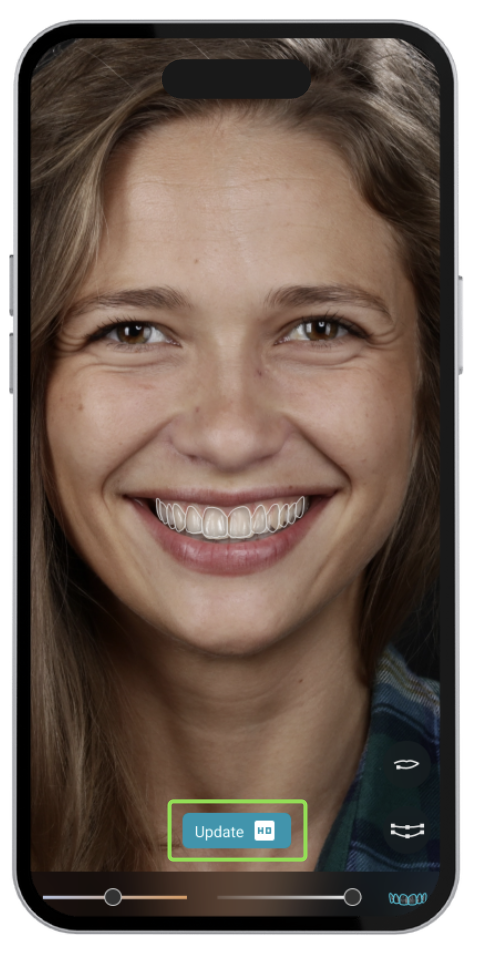
If you make any additional adjustments to the Lip Contour or Restorative Space, simply tap “Update HD” to refresh the Smile Design and apply your latest changes.